10. Model Context Protocol
Model Context Protocol, usually abbreviated MCP, is a simple way for an application to expose tools and structured data to an LLM-based client. Instead of asking the model to inspect files directly, the client talks to a server that offers named tools such as discovery, lookup, and read-only data access.
From the user’s point of view, MCP is mostly an interoperability layer: the client knows which tools exist, how to call them, and how to interpret the results. The server keeps the actual data and behavior behind a small, documented interface.
For Waterloo, that interface is used to expose JSON-based documentation data and a small set of helper tools that make large documentation trees easier to navigate from an LLM agent or a visual inspector.
10.1. The Waterloo MCP-Server
The Waterloo MCP-server applies that pattern to Waterloo documents in JSON format. It gives LLM-agents a simple, standardized way to access and query the documentation without loading the whole data set into the context window. The server is implemented as a simple HTTP server that listens for JSON-RPC requests and responds with JSON data. It can be integrated with LLM-agents that support JSON-RPC.
10.2. Executable and configuration
The Waterloo package includes a ready-to-use configuration file for the MCP
server at etc/wtrl_mcp.http.toml.
Once the package is installed, the server can be started in a terminal with
the following command:
wtrl_mcp --config etc/wtrl_mcp.http.toml
If the argument to --config is an absolute path, it is used as is.
If it is a relative path, wtrl_mcp first looks for the file
relative to the current working directory and then relative to the installed
Waterloo package root. The usual package-local configuration path is therefore
prefixed with etc/. If neither candidate exists, the server reports a
clear configuration error and exits.
The following configuration attributes are supported:
10.2.2. Authentication
The server can optionally require Bearer-token authentication for MCP
requests. When auth is enabled, the server also exposes loopback-only
/admin routes for token management.
Warning
In the current implementation, bearer tokens are transmitted over plain HTTP. This is acceptable only on trusted networks, loopback connections, or SSH-tunneled setups. It is not sufficient for an internet-exposed server unless you add transport-layer protection elsewhere.
enabled: bool
Toggle bearer-token verification for MCP requests. The default is
false.
token_store: string
Path to the JSON file with hashed token records. If this option is omitted,
the server uses ${XDG_STATE_HOME:-~/.local/state}/wtrl_mcp/tokens.json for
user-mode operation. For system-wide service deployments, prefer an explicit
instance-specific path such as /var/lib/wtrl_mcp/<instance_label>/tokens.json.
realm: string
Stable label for auth responses and diagnostics. A good default is
Waterloo MCP.
Remote administration is expected to go through wtrl_mcp_admin and, when
needed, through an SSH tunnel to remote loopback. The admin API remains
loopback-only in v1; it is not meant to be exposed as a generally reachable
public interface.
The configured identity is the natural namespace key for a
future shared token store per host. That keeps the server identity separate
from transport details such as host or port.
10.2.3. Logging
level: string
Logging level for the server process. It controls how verbose the Waterloo and Uvicorn log output should be.
config_path: string
Optional path to a dedicated logging configuration file. When present, the server loads that file instead of relying only on the built-in log formatting defaults.
access_log: bool
Toggle for the HTTP access log. This is useful when you want either a quiet development console or a more detailed request trace.
10.2.4. Roots
An arbitrary number of root entries can be provided.
Each root entry describes one Waterloo JSON document that the MCP server offers to clients. The configured roots determine what the discovery, lookup, and search tools can see.
path: string
Path to the root document or root directory. Relative paths are resolved against the configuration location; absolute paths are also supported.
label: string
Human-readable label for the configured root. This label is used in MCP responses and helps distinguish multiple roots.
enabled: bool
Controls whether the root is active in the current server configuration.
kind: string
Kind of root represented by the entry. The current server mainly uses
wtrl-json.
10.3. Tools
The MCP-server supports the following tools:
The server is intentionally read-only in the current implementation.
It serves discovery, lookup, and inspection tools for Waterloo JSON
documentation roots. The same runtime also serves bundled prompt
templates and the wtrl-mcp://instructions resource that points
clients to the current package README.
Tool discovery
describe_tool— reads the Waterloo signature and docstring for one MCP tool.
Root discovery and inventory
list_roots— lists the configured Waterloo data roots.get_root— reads one configured Waterloo data root byroot_id.get_root_metadata— reads only the compact header metadata of one configured Waterloo root byroot_id.list_objects— lists all Waterloo objects in one configured root.
Object content access
get_object— reads one Waterloo object byqidfrom a configured root.get_section— reads one stored section of one Waterloo object.get_subsection— reads one stored subsection of one Waterloo object.get_signature— reads the stored signature block for one Waterloo object.
Reference and graph lookup
get_references— reads structured incoming See_also references for one Waterloo object.search_related— reads the star-shaped See_also neighborhood for one Waterloo object.
Example lookup
get_examples— reads structured example metadata for one Waterloo object.get_example_source— reads the source text for one canonical Waterloo example reference.
Search tools
search_objects— searches Waterloo objects by expression and structural filters.search_sections— searches Waterloo section and subsection labels by expression and structural filters.search_text— searches Waterloo text content by terms and structural filters.
Authoring helper
gen_docstring— generates a Waterloo docstring template for a given profile, with optional signature, template mode, and indentation mode.
10.4. Typical agent workflow
The tools above are the catalog; the workflow below is a recommended way to approach them when the agent does not already know the exact tool or target. In practice there are two common starting points:
discover the MCP tool set itself with
describe_tooldiscover Waterloo content with
list_roots
The lookup-oriented tools are then meant to be used in a simple progression.
This is only a recommended progression; agents that already know the target can
jump directly to the relevant get_* or search_* tool.
list_rootsto discover available roots.describe_toolwhen the agent wants to inspect the signature and Waterloo docstring of one MCP tool.list_objectsto inventory the objects in one root before drilling down.search_objectsto find candidate objects and obtain stableroot_id/qidpairs.get_sectionorget_subsectionto inspect the relevant contract, notes, or other structured sections.search_sectionswhen the agent wants to find section or subsection labels rather than object names.get_signaturewhen the agent wants to inspect the canonical stored signature for one object.get_referenceswhen the agent wants to inspect incoming structured See_also references for one object.search_relatedwhen the agent wants a compact star-shaped See_also neighborhood around one object.get_exampleswhen the agent wants to inspect available example references for one object.get_example_sourcewhen the agent wants to retrieve the raw source text for one canonical example reference.search_textwhen the agent wants to search the actual content text with a small set of terms.gen_docstringwhen the agent wants to draft or refine a Waterloo docstring template for a profile.
In practice this means that the agent can start with a vague name, narrow it down to a canonical target, and then inspect the exact Waterloo text that describes the object.
10.5. Using the MCP-server in VS Code
HTTP transport
[Last tested with VS Code 1.115.0 on 2026-05-31]
With transport streamable-http, the MCP-server is added to VS Code by:
Shift+Ctrl+PandMCP: Open User Configuration
The code to be added should look like
{
    "servers": {
        "waterloo-docs": {
                "type": "http",
                "url": "http://127.0.0.1:13316/mcp"
        }
    }
}
where the url is the URL of the MCP server. Use the host and port
from the running server configuration, and make sure the URL matches the
configured streamable-http endpoint. The MCP server must be
running and accessible at that URL for the integration to work. As a smoke
test, open the MCP panel in VS Code and see whether it connects successfully.
Then ask Copilot to run list_roots and check whether it returns the
expected list of documents.
Stdio transport
With transport stdio, the setup is usually more convenient for
day-to-day use because no separate terminal and no TCP port are needed. If the
Waterloo extension and the Python package sdv.doc.waterloo are
installed, VS Code can talk to the MCP-server directly through the stdio
transport. The extension contributes the server automatically, so the user does
not need to add a JSON server definition by hand.
The default configuration lives in etc/wtrl_mcp.stdio.toml. If you
want to customize the roots or other settings, make a copy of that file and
point VS Code to the copy. Open the command palette with
Shift + Ctrl + P, choose MCP: Open User Configuration, and
then set waterloo.mcpConfigPath to your copied stdio configuration.
The path may be absolute (recommended) or relative; if it is relative, the extension also
looks in the open workspace and in the installed Waterloo package root.
If you want to disable the automatic MCP server contribution entirely, set
waterloo.mcpProvideServer to false. Otherwise the extension will
use the configured command and configuration path, with sensible defaults when
no custom path is given.
After saving the settings, open the MCP panel in VS Code and check whether the
server appears. As a smoke test, ask Copilot to run list_roots and
verify that the expected roots are returned.
10.6. Server error messages
This section is normative.
The MCP implementation currently returns textual tool errors through the
FastMCP transport path. The Waterloo-specific error payload classes are kept
as a draft in mcp/wtrl_error.py, but the wire-level structure is
not normative yet.
The current lookup-oriented rule family is:
[MCPS-001] – unknown or missing
root_id.[MCPS-002] – unknown
qid.[MCPS-003] – unknown section name.
[MCPS-004] – unknown subsection name.
[MCPS-005] – root document too large for the
get_rootguardrail.[MCPS-006] – unknown example reference.
[MCPS-007] – unknown tool name.
The current implementation already prefixes tool error messages with these rule labels. A later version may map them more directly to structured JSON-RPC error payloads if the MCP SDK exposes a better hook for that.
10.7. Running the MCP Server in a Docker Container
To provide an MCP server in a platform-independent way,
waterlint can generate a Dockerfile and, depending on the selected mode,
one or two helper scripts from an MCP server configuration.
The generated container provides a complete deployment unit for a Waterloo MCP server, including configuration and, optionally, the referenced root documents.
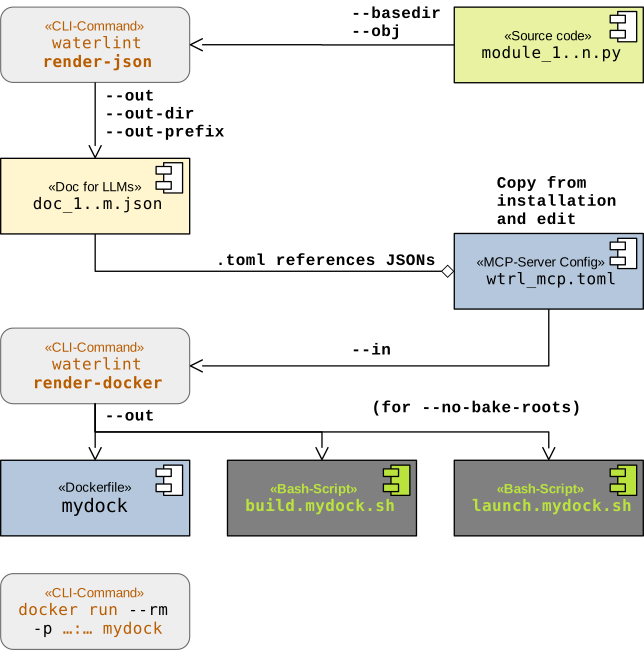
The corresponding subcommand is render-docker.
The basic invocation syntax is:
waterlint render-docker --in /path/to/mcp.toml --out /path/to/dockerfile
Two operating modes are available:
--no-bake-roots– Root documents are mounted into the container at runtime.--bake-roots(default) – Root documents are embedded into the Docker image.
Additional options are described in the waterlint online help.
In particular, render-docker accepts --public-port
to describe the externally published container port and
--allowed-hosts to name the hosts that should be allowed for that
port in the generated configuration.
During development, or while actively extending a project’s documentation,
the --no-bake-roots mode is typically preferred. This avoids
rebuilding the Docker image whenever documentation changes; restarting the
container is sufficient.
Starting such a container manually would be inconvenient because the required
document roots must be mounted explicitly. Therefore,
waterlint render-docker additionally generates a launch script
for this mode. The script starts the container in the foreground and forwards
logging output to stdout.
For deployment, the --bake-roots mode is usually preferred,
because only a single artifact – the Docker image itself – needs to be distributed.
After generating the Dockerfile and scripts,
waterlint render-docker prints a number of example Docker commands,
including commands for running the container as a daemon.
The generated Docker image acts as a deployable Waterloo documentation service. The overall workflow is illustrated in the following diagram:
The package installation directory relevant for the following examples can be obtained using:
python3 -c "import importlib.resources as r; print(r.files('sdv.doc.waterloo'))"
We refer to this path as ${ROOT}.
Among other files, directory ${ROOT}/etc contains an MCP server configuration
and a logging configuration referenced by that server configuration:
wtrl_mcp.http.tomllogging.toml
For example, the MCP server can be started with HTTP transport using:
wtrl_mcp --config ${ROOT}/etc/wtrl_mcp.http.toml
This configuration defines an MCP server using transport
streamable-http, listening on port 13316.
The generated Docker image automatically exposes this port.
10.7.1. Bake Mode (--bake-roots, default)
We use the above configuration as an example for running the MCP server inside a Docker container:
waterlint render-docker --in ${ROOT}/etc/wtrl_mcp.http.toml --out /tmp/my_wtrl_mcp
This generates Dockerfile /tmp/my_wtrl_mcp
and build script /tmp/build.my_wtrl_mcp.sh.
The build script uses --no-cache by default and accepts
--cache when you want to reuse Docker layers explicitly.
If the image will be published on a different port than the server listens on
inside the container, add for example
--public-port 13315 --allowed-hosts localhost 127.0.0.1.
The Docker image is then built simply by executing:
/tmp/build.my_wtrl_mcp.sh
Afterwards, Docker should list the image:
docker image ls | grep my_wtrl_mcp
wtrl-mcp-my_wtrl_mcp latest bcd1f03f9682 34 seconds ago 274MB
The image can now be started in the foreground for testing. It is important to forward the configured port number (13316 in this example):
docker run --rm -p 13316:13316 wtrl-mcp-my_wtrl_mcp
The MCP server should report messages similar to the following (line wrapping added for readability):
2026-06-06T06:29:03 INFO: WTRL Ready to serve via Uvicorn.
2026-06-06T06:29:03 INFO: WTRL Loaded 1 configured roots.
2026-06-06T06:29:03 INFO: WTRL Configured root:
                          /shared/doc/wtrl_mcp.wtrl.core.rfc-2119.eb1497962ecf.json ...
2026-06-06T06:29:03 INFO: WTRL Built reference index with 13 target entries
                          and 39 source references.
2026-06-06T06:29:03 INFO: Started server process [1] [_serve]
2026-06-06T06:29:03 INFO: Waiting for application startup. [startup]
2026-06-06T06:29:03 INFO: StreamableHTTP session manager started [run]
2026-06-06T06:29:03 INFO: Application startup complete. [startup]
2026-06-06T06:29:03 INFO: Uvicorn running on http://0.0.0.0:13316
                          (Press CTRL+C to quit) [_log_started_message]
Alternatively, the container can be run as a daemon:
docker run -d --name wtrl-mcp-my_wtrl_mcp -p 13316:13316 wtrl-mcp-my_wtrl_mcp
and stopped in the usual Docker way:
docker stop wtrl-mcp-my_wtrl_mcp
10.7.2. No-Bake Mode (--no-bake-roots)
If the MCP server roots should not be embedded into the image, generate the Dockerfile as follows:
waterlint render-docker --in ${ROOT}/etc/wtrl_mcp.http.toml --out /tmp/my_wtrl_mcp --no-bake-roots
Unlike Bake Mode, an additional launch script
/tmp/launch.my_wtrl_mcp.sh is generated.
This script is required because manually starting the container becomes impractical once the MCP server roots are supplied externally.
The image is built and started using:
/tmp/build.my_wtrl_mcp.sh
/tmp/launch.my_wtrl_mcp.sh
Logging is written to stdout.
The container runs in the foreground and can be stopped with
CTRL C.
10.8. Authentication
The current implementation of wtrl_mcp supports
Bearer-token authentication for MCP requests.
wtrl_mcp_admin is used to manage the server and issue tokens.
Administrative access is intentionally loopback-only: the admin reaches the
server host over SSH and, when needed, opens an SSH tunnel to the remote
loopback interface. This keeps the admin path separate from normal client
access while still making remote administration practical.
In practice, the workflow can look like this:
The admin registers the server in the local admin configuration file:
wtrl_mcp_admin add-server --label my_smart_server --url http://my_host:my_port
The identity is the stable machine-facing server key, while
the label remains the human-oriented name used in the admin
registry and output tables. In the current workflow, add-server creates
the registry entry first and leaves identity empty until the
server has been contacted successfully.
list-servers may therefore show an empty identity for newly registered
servers. ping-servers is the step that can later reveal the identity once
the server answers its admin status request.
Once the MCP server is running, the admin generates a token:
wtrl_mcp_admin gen-token --server my_smart_server --user alice --client vscode --location notebook
The server may respond with a JSON object such as
{
  "client": "vscode",
  "created_at": "2026-07-07T14:28:09Z",
  "expires_at": null,
  "location": "notebook",
  "notes": null,
  "revoked_at": null,
  "token": "rGd3Gjts4zgRnqBELoCY7xuIQ_74P7Gm4OFmIXT0qgk",
  "token_id": "alice-vscode-notebook",
  "token_sha256": "b89321eda7bbdd9d7cdc2e2829aa6fe433d1c108205d7db647e7224d4c84984c",
  "user": "alice"
}
The admin sends the token
rGd3Gjts4zgRnqBELoCY7xuIQ_74P7Gm4OFmIXT0qgkto the user through a secure channel, and the user stores it in the client configuration. From that point on, the client can authenticate against the MCP server.
10.8.1. Configuring the token in Codex
Codex can send the bearer token directly in the MCP server configuration.
[mcp_servers.my_smart_server]
url = "http://<my_host>:<my_port>/mcp"
http_headers = {
        Accept = "application/json, text/event-stream",
        Authorization = "Bearer rGd3Gjts4zgRnqBELoCY7xuIQ_74P7Gm4OFmIXT0qgk"
        }
10.8.2. Configuring the token in Claude
Claude Code follows the same basic idea: configure the MCP server entry so
that outgoing requests include an Authorization: Bearer ...
header. The exact file or dialog depends on the Claude integration version,
but the token value itself is the same.
{
  "mcpServers": {
    "my_smart_server": {
      "type": "http",
      "url": "http://<my_host>:<my_port>/mcp",
      "headers": {
        "Authorization": "Bearer rGd3Gjts4zgRnqBELoCY7xuIQ_74P7Gm4OFmIXT0qgk"
      }
    }
  }
}
10.8.3. Configuring the token in VS Code
VS Code can also use the same bearer token, provided the MCP server entry
supports custom HTTP headers. Add an Authorization: Bearer ...
header to the server configuration and point the client at the MCP URL.
The following pattern has been tested successfully with VS Code version 1.115.0:
{
  "servers": {
    "my_smart_server": {
      "url": "http://<my_host>:<my_port>/mcp",
      "type": "http",
      "headers": {
        "Authorization": "Bearer rGd3Gjts4zgRnqBELoCY7xuIQ_74P7Gm4OFmIXT0qgk"
      }
    }
  },
"inputs": []
}
